| Filename | Latest commit message | Latest commit date |
|---|---|---|
| README.md | ||

Neovim: LSP integration demystified | lspconfig → vim.lsp
The Problem
We get breaking changes with nvim-lspconfig commit 1f7fbc3
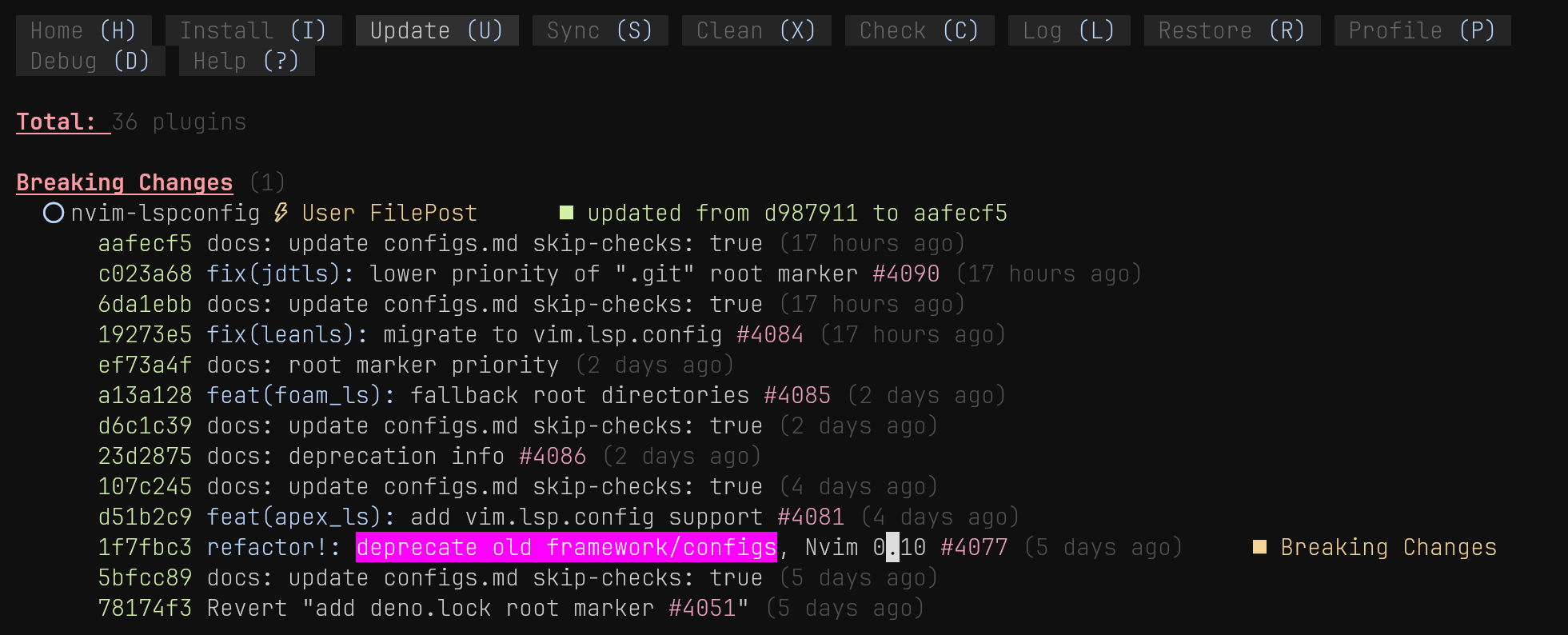
Effect: When you have something like this in your lspconfig.lua...
-- lua/configs/lspconfig.lua
local lspconfig = require "lspconfig"
lspconfig.html.setup {}
You see this when starting nvim
The
require('lspconfig')"framework" is deprecated, use vim.lsp.config (see :help lspconfig-nvim-0.11) instead. Feature will be removed in nvim-lspconfig v3.0.0

To make this go away we use vim.lsp now.
Understanding LSP integration
NeoVim / lua doesn't come with any LSP magic on it's own. All it does is to integrate existing Language Servers which are provided as some sort of executable that lives somewhere on your system.
What do we need to get LSP integration in NeoVim?
-
A programming language we want to code in
-
Executable that implements the Language Server Protocol for our programming language
-
lua code to integrate that executable into neovim
LSP Integration Ingredients
Executable
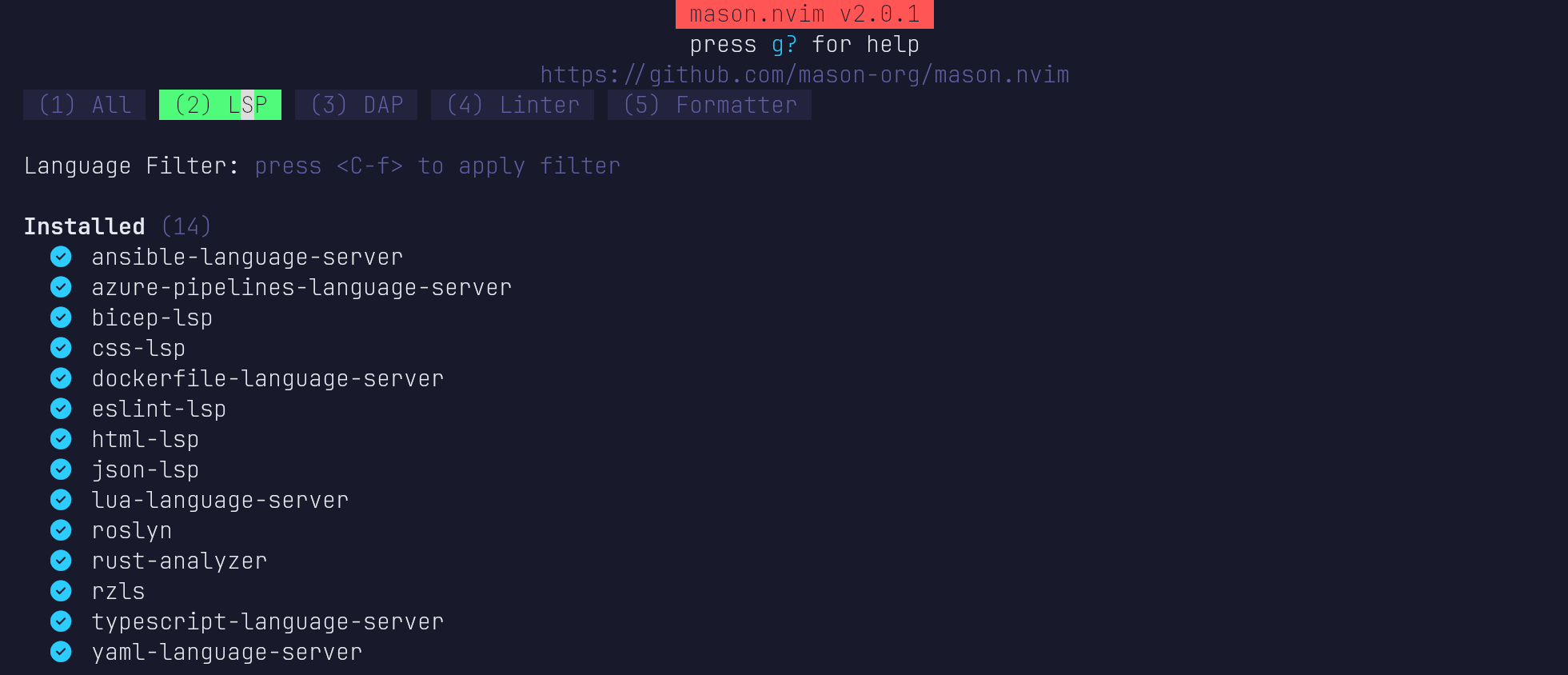
Typically you would install your language server executable with :Mason
Lua integration
After installing your LSP, you would configure it with vim.lsp like so
-- vim.lsp configuration anatomy

vim.lsp.config("ls-name", {
  filetypes = { "extension" },
})
vim.lsphas default configs for certain known language servers baked into it, those defaults can be found here.
Caution
-
Some LSPs are standalone executables (e.g.
rust-analyzer,roslyn) -
Others are libraries/scripts that need a runtime to launch them (e.g. Bicep via
dotnet, TypeScript vianode, Lua vialua)
LSP Integration Example: bicep-lsp
"Bicep is a Domain Specific Language (DSL) for deploying Azure resources declaratively", the bicep-lsp is written in C#
bicep-lsp currently needs dotnet 8 installed on your system. In arch you can install it with
sudo pacman -S dotnet-sdk-8.0
Executable
Install the bicep-lsp with
:MasonInstall bicep-lsp
Lua integration
After installing bicep-lsp, you would configure it with vim.lsp, ADD those lines to your lspconfig.lua
-- lua/configs/lspconfig.lua
-- ...

vim.filetype.add({ extension = { ramboefile = "bicep" } }) -- DEMO map .ramboefile to .bicep so it triggerd the bicep-lsp

local bicep_mason_path = vim.fn.stdpath("data") ..
    "/mason/packages/bicep-lsp/extension/bicepLanguageServer/Bicep.LangServer.dll"

vim.lsp.config("bicep", {
  cmd = { "dotnet", bicep_mason_path },
  filetypes = { "bicep" },
})

vim.lsp.enable("bicep")
Explanation
-
Servers like bicep-lsp, need extra configuration.
-
In the case of bicep this is so, because it is not standalone but it is a DLL that depends on the dotnet runtime and this DLL can reside anywhere in our file system.
-
We have to pass in it's path explicitely, vim.lsp can't know the path and therefore all the extra configuration.
-
If it was standalone then it would just be made available through the mason PATH and we could simply enable it like other lsps
Typically the full path to the bicep-lsp would look like something like this:
dotnet "/home/ramboe/.local/share/nvim/mason/packages/bicep-lsp/extension/bicepLanguageServer/Bicep.LangServer.dll"
vim.filetype.add()
vim.filetype.add needs to be called if a given filetype is not supported
-- lua/configs/lspconfig.lua

vim.filetype.add({ extension = { ramboefile = "bicep" } }) -- map .ramboefile to .bicep so it triggerd the bicep-lsp
rest stays the same
-- lua/configs/lspconfig.lua

local bicep_mason_path = vim.fn.stdpath("data") ..
    "/mason/packages/bicep-lsp/extension/bicepLanguageServer/Bicep.LangServer.dll"

vim.lsp.config("bicep", {
  cmd = { "dotnet", bicep_mason_path },
  filetypes = { "bicep" },
})

vim.lsp.enable("bicep")
to check if a file type is already acknowledged, execute this in neovim:
:e $VIMRUNTIME/lua/vim/filetype.lua
and check if you can find your filetype.
Migrating to vim.lsp
NvChad's Sane Defaults
What we don't do anymore
In the old world, I would have to assign on_attach, on_init and capabilities manually like so
-- lua/configs/lspconfig.lua

-- load nvchad's sane defaults
local on_attach = require("nvchad.configs.lspconfig").on_attach
local on_init = require("nvchad.configs.lspconfig").on_init
local capabilities = require("nvchad.configs.lspconfig").capabilities

-- assign the sane defaults to each LSP individually
require("lspconfig").html.setup({
  on_attach = on_attach,
  on_init = on_init,
  capabilities = capabilities,
})
Explanation
on_init→ global per-client setup (what this LSP can or cannot do).on_attach→ per-buffer setup (keymaps, formatting, behavior).capabilities→ feature negotiation (completion/snippets, etc.).
Together, they ensure every LSP server works consistently while still letting you customize per-client or per-buffer behavior.
What we do instead
In the new world require("nvchad.configs.lspconfig").defaults() does this automatically to every lsp that I use in my config.
Configuring your LSP
Once installed, most language servers can just be enabled with vim.lsp.enable(servers) and we are good. Example: vanilla nvchad lspconfig.lua:
-- lua/configs/lspconfig.lua
require("nvchad.configs.lspconfig").defaults()

local servers = { "html", "cssls" }

vim.lsp.enable(servers)

-- read :h vim.lsp.config for changing options of lsp servers
you can see the full migration of my own lspconfig.lua when you check the git history here from commit 9099d447e7