| Filename | Latest commit message | Latest commit date |
|---|---|---|
| README.md | ||

Neovim + C#: formatting. | csharpier, conform.nvim
What do we need to get formatting in neovim?
- A set of rules on how we want the formatting to look like
- Executable that takes text and gives us formatted text based on these rules
- lua code to integrate that executable into neovim
- A key mapping in neovim to format the current buffer
The .editorconfig
"EditorConfig helps maintain consistent coding styles for multiple developers
working on the same project across various editors and IDEs."
A very simple .editorconfig can look like this
root = true

# All files
[*]

charset = utf-8-bom
end_of_line = crlf
indent_size = 4
indent_style = space
insert_final_newline = false
max_line_length = 50
tab_width = 4

# Xml files
[*.xml]
indent_size = 2
The Executable
The problem with dotnet format
This one will format correctly
Console.WriteLine("Hello, World!");
But when we run dotnet format over our Program.cs, it doesn't break those lines, even though max_line_length is set to 50
Console.WriteLine("Hello, World!"); Console.WriteLine("Hello, World!"); Console.WriteLine("Hello, World!"); Console.WriteLine("Hello, World!");
The csharp LSPs and dotnet format do not fully apply our .editorconfig - this is a long running issue: https://github.com/dotnet/roslyn/issues/15406
-
max_line_lengthis a property in the.editorconfig. The EditorConfig is a general concept, not csharp or dotnet specific. -
dotnet formatsimply ignoresmax_line_lengthso jetbrains rider, vs code and visual studio all have individual implementations for this. -
If you use something else than the above mentioned mainstream editors, then you need something else for proper formatting of
max_line_length
This is where csharpier comes in
Correct .editorconfig formatting with csharpier
You can install csharpier easily with mason:
:MasonInstall csharpier
In order for csharpier to work, make sure the latest dotnet is installed (9.0.305 currently)
otherwise
:ConformInfowill tell you "No frameworks were found."
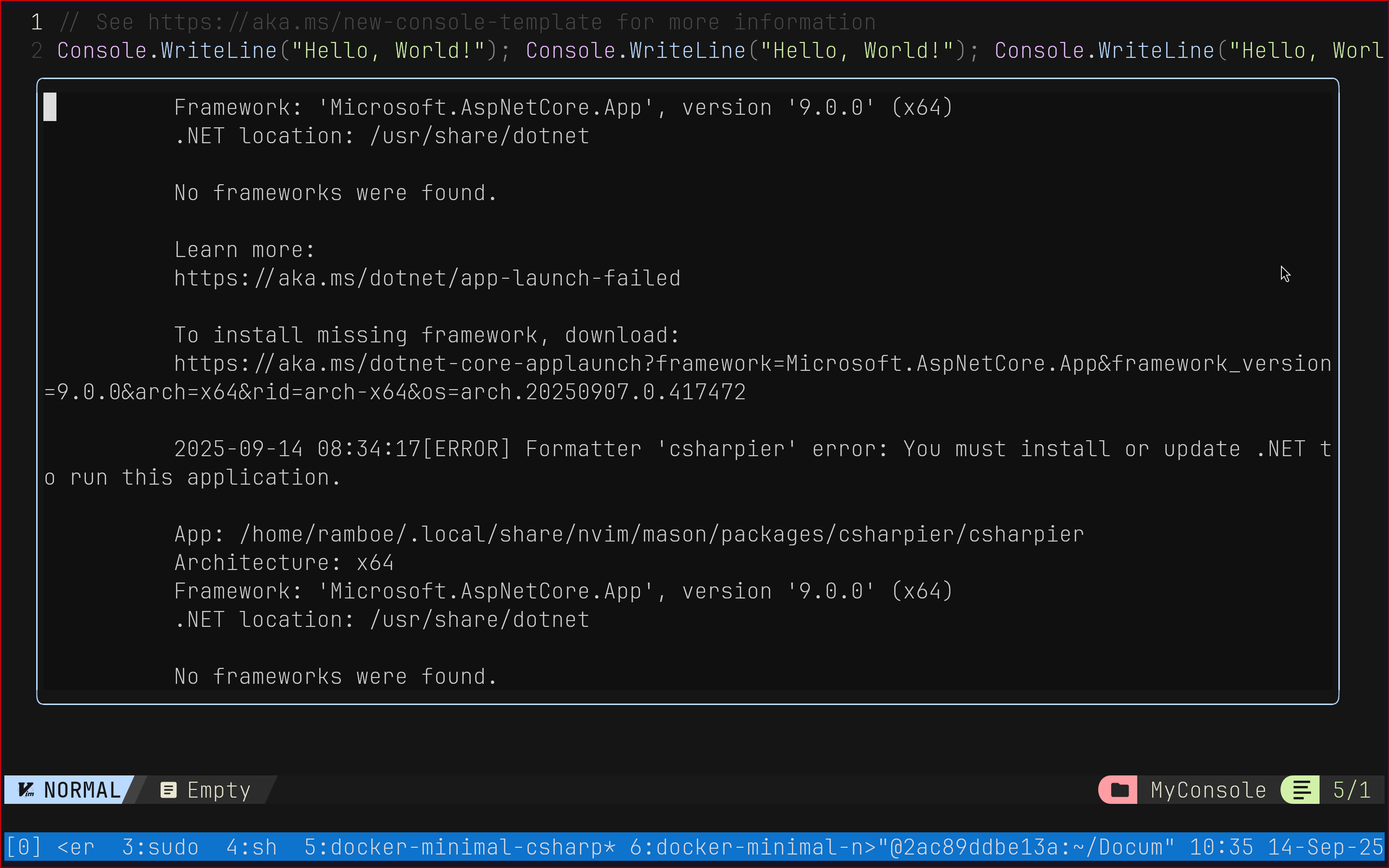
Do it as mentioned here or simply copy and paste this code:
curl -fsSL -o ~/Downloads/dotnet-install.sh https://dot.net/v1/dotnet-install.sh && \
chmod +x ~/Downloads/dotnet-install.sh && \
cd ~/Downloads/ && \
sudo ./dotnet-install.sh --install-dir /usr/share/dotnet -channel STS -version 9.0.305
conform.nvim
What is conform.nvim
conform.nvim is the lua "glue" that connects the formattter with the currently opened neovim buffer. It works like so.
nvchad comes with a conform.nvim configuration by default
-- lua/plugins/init.lua

{
    "stevearc/conform.nvim",
    -- event = 'BufWritePre', -- uncomment for format on save
    config = function()
      require "configs.conform"
    end,
  }
Setting up csharpier in conform
The following lines make conform use csharpier to format .cs and .csproj files
-- lua/configs/conform.lua

local opts = {
  async = true,
  formatters_by_ft = {
    cs = { "csharpier_ramboe" },
    csproj = { "csharpier_ramboe" }
  },
  formatters = {
    csharpier_ramboe = {
      command = "csharpier",
      args = {
        "format",
        "--write-stdout",
      },
      to_stdin = true,
    },
  },
  -- format_on_save = {
  --   -- These options will be passed to conform.format()
  --   timeout_ms = 500,
  --   lsp_fallback = true,
  -- },
}

require("conform").setup(opts)
Conform passes the contents of the current buffer to the formatter through stdin and expects the formatted result back on stdout. That’s why we set to_stdin = true in the config and add --write-stdout to the csharpier command. Without this handshake, csharpier would just rewrite files on disk, but with stdin/stdout it behaves like a pipe:
[Neovim buffer] → stdin → csharpier → stdout → [formatted buffer]
Formatting the Current Buffer
NvChad
The default nvchad keymap for formatting the current buffer can be found here and looks like this:
map({ "n", "x" }, "<leader>fm", function()
  require("conform").format { lsp_fallback = true }
end, { desc = "general format file" })
Demo: csharpier formatting
After setting up csharpier, our Program.cs should now look like this
Console.WriteLine("Hello, World!");
Console.WriteLine("Hello, World!");
Console.WriteLine("Hello, World!");
Console.WriteLine("Hello, World!");
Formatting .razor files
dotnet format and prettier both do not apply to .razor files. We have to rely on LSP formatting.
Create Test project
cd ~/Documents && \
dotnet new blazor -n MyBlazor
cd MyBlazor && \
dotnet build
Enable good enough formatting
A look at the rzls.nvim formatting dependencies reveals: all we need to do is having html-lsp installed.
In the moment conform.nvim recognizes there is no configuration for .razor files, it wall fall back to rzls.nvim which then uses html-lsp to format our file
:MasonInstall html-lsp
What did we accomplish?
- A set of rules on how we want the formatting to look like -
.editorconfig - Executable that takes text and gives us formatted text based on these rules -
csharpier - lua code to integrate that executable into neovim -
conform.nvim - A key mapping in neovim to format the current buffer -
<leader>fm
What's next?
Unfortunately...
html-lsp itself does not expose a setting to wrap attributes vertically. It won’t turn
<button class="btn btn-primary" some="more" @onclick="IncrementCount">Click me</button>
into
<button class="btn btn-primary"
        some="more"
        @onclick="IncrementCount">
  Click me
</button>
There is a plugin that potentially can do that but I couldn't get it to work and the last commit has been 4 years ago
But maybe there is hope
JetBrains offers MIT licensed CLIs
Upsides
- razor support
- rider colleagues are happy now
Downsides
- potentially slow
- works on the file directly, no stdin/stdout support